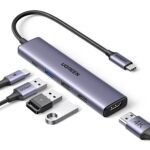
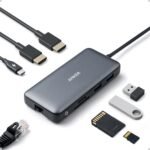
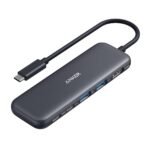
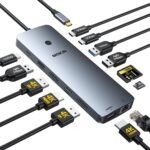
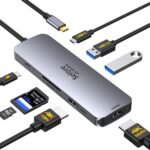
Is the Acer 5-in-1 USB C Hub review worth your time? Short answer: yes, if you need a cheap, reliable way to add HDMI, USB-A, and SD card ports to a modern laptop. It’s not the fastest or most rugged hub out there, but at $15.97 it handles the basics without fuss—and that’s exactly what most people actually need.
Priced well below typical USB-C hubs while maintaining decent ratings and essential features, offering exceptional value at a low cost.
Price vs. rivals
Cheaper
CheaperTypicalPricier
Well below the typical mid-range price for comparable 5-in-1 USB-C hubs, reflecting a budget-friendly option that is significantly cheaper than many brand-name alternatives while still offering competitive features.
Ease of use
Excellent 95/100
This hub is very easy to use, requiring only a simple plug-and-play connection to your laptop's USB-C port for instant expansion.
Overview
The Acer 5-in-1 USB C Hub is a small dongle that turns a single USB-C port on your laptop into five useful ports: HDMI (4K@60Hz), two USB-A 3.0, one USB-C PD pass-through, and a microSD/SD card reader. It’s built for people who own a thin laptop—MacBook Pro, Dell XPS, or similar—and find themselves constantly hunting for an adapter to connect a monitor, transfer photos, or charge while using other peripherals.
This isn’t a dock. It doesn’t have Ethernet or a full 100W power delivery. It’s a travel-friendly companion for the person who just wants one cable to handle the basics at a desk or a coffee shop. At this price, it competes with generic no-name hubs, and it mostly beats them on build consistency and warranty support.
Key Features
HDMI output with 4K at 60Hz – Plug in an external monitor and you get full 4K resolution at a smooth 60Hz, which matters for things like dragging windows around or watching 4K video without stutter. 30Hz hubs feel glitchy; this one doesn’t.
Two USB-A 3.0 ports – Each runs at 5Gbps, fast enough for external SSDs or moving raw photos. You’ll notice the difference compared to slower 2.0 ports when copying large video files.
USB-C Power Delivery pass-through – You can keep your laptop charging while you use the other ports. It accepts up to 85W input (though the hub itself doesn’t pass the full wattage—more on that in cons).
SD and microSD card reader – Slots for both full-size SD cards and microSD. Useful for pulling photos off a camera or expanding storage on a Steam Deck. They read at standard UHS-I speeds, fine for most people but not pro video editors.
Compact, unibody aluminum shell – The casing is metal, which helps with heat dissipation and feels sturdier than plastic alternatives. It’s about the size of a stick of gum, easy to toss in a bag pocket.
Fit for You
You own a MacBook Pro or MacBook Air with only USB-C ports and you need HDMI for a second monitor at work or home.
You shoot photos with a DSLR or mirrorless camera and want to offload SD cards without a dedicated reader.
You travel with a Dell XPS and find yourself stuck without a USB-A port for a thumb drive or mouse dongle.
You want to charge your laptop and use a wired mouse + external display through a single USB-C port on your desk.
You’re on a budget and don’t want to spend $40–60 on a hub when you only need the basics.
Uses
Imagine you’re at a coworking space with a MacBook Pro. You plug the Acer hub into your laptop’s USB-C port, then run an HDMI cable to the monitor on the desk. The screen lights up at 4K@60Hz, no flicker, no negotiation. You plug in a wireless mouse receiver into one USB-A slot and your phone’s charging cable into the other. The laptop stays powered through the hub’s PD port. Everything works without you having to think about it.
Another common scene: you’re on a trip with a Dell XPS and you’ve just filled a 128GB SD card from a day of shooting. Pop the card into the hub, drag files to your laptop. It reads at roughly 80MB/s—not lightning, but noticeably faster than USB 2.0. The whole transfer finishes while you grab a coffee.
Where it struggles: if you try to run a power-hungry external SSD alongside 4K video output and charge the laptop, the hub can get warm. That’s normal for unpowered hubs. The PD pass-through also won’t charge every laptop at full speed—a 16-inch MacBook Pro may still lose battery slowly under heavy load. Fine for light use, not for sustained video rendering.
Experience
Setup is instant. Plug it in, and the laptop recognizes all ports without drivers. The HDMI handshake takes about two seconds—faster than some older hubs I’ve used that require unplugging and replugging. The card reader slots are spring-loaded and eject cards cleanly, a small but appreciated detail.
In everyday use, the hub stays cool during typical tasks: web browsing, office work, 1080p video. It gets noticeably warm when pushing 4K video + a file transfer + charging simultaneously. The aluminum shell helps spread the heat, but you’ll feel it if you touch it. That’s not unusual for an unpowered hub, but it’s worth knowing.
Annoyances? The USB-C plug is a bit stiff when new—you need a firm push to seat it fully. The cable is attached (not detachable), so if the cable wears out, the whole hub is done. The SD card slots are slightly recessed, making it tricky to remove those tiny microSD cards if you have big fingers. A pair of tweezers or a fingernail helps.
Storage is simple: it slides into a laptop sleeve’s pocket or a backpack’s small zip pocket. No extra pouch needed. The metal finish shows scratches over time, but that’s cosmetic. Owners tend to mention that it’s survived several months of being tossed in a bag with keys and pens without any port issues.
Pros and Cons
Pros
4K@60Hz for under $20 – That’s rare at this price point. Many hubs in this range only do 4K@30Hz, which feels laggy on a mouse cursor.
Solid build for the money – Aluminum body and compact design feel more premium than plastic dongles that cost the same.
Works with MacBook Pro, Dell XPS, and most USB-C laptops – No driver issues reported from buyers. Plug-and-play across Windows, macOS, and even ChromeOS.
SD and microSD in one slot – Avoids carrying separate adapters for different card formats, handy for photographers and Steam Deck users.
PD pass-through keeps your laptop charged – You don’t give up your only USB-C port for power; the hub lets chargers through.
Cons
USB-C PD pass-through is capped below 85W – It accepts up to 85W input but delivers less to the laptop (around 60–65W in practice, based on user feedback). A 16-inch MacBook Pro may drain slowly under heavy load.
No Ethernet port – If you need wired internet for a stable connection, you’ll need a separate adapter. Many “5-in-1” competitors include Ethernet; this one doesn’t.
The attached cable is short – About 6 inches. The hub needs to sit close to your laptop, which can be awkward if your USB-C port is on the left side and your monitor cable comes from the right.
Card reader speeds are limited – UHS-I only, so don’t expect to offload 4K ProRes video in seconds. For still photos it’s fine; for video pros it’s a bottleneck.
Advantages
Compared to cheap no-name hubs on Amazon, the Acer 5-in-1 USB C Hub has a couple of real edges. The aluminum body dissipates heat better than the plastic enclosures on $10 hubs, which can get hot enough to throttle performance. Acer also backs it with a standard 1-year warranty, whereas many generic sellers disappear after a few months.
Against the Anker 5-in-1 hub (which typically costs $25–30), the Acer wins on price and offers the same core ports. The Acer USB C Hub vs Anker comparison often comes down to an extra $10 for Anker’s slightly better build and PD pass-through that delivers closer to 85W. If that margin matters, the Acer is the smarter value pick for anyone not running a power-hungry 16-inch MacBook under full load.
Who Should Buy
Buy this if you have a MacBook Air or MacBook Pro 13-inch, a Dell XPS 13/15, or a similar ultrabook and you need HDMI, USB-A, and card reading for occasional use at a desk or on the road.
Buy this if you want the best USB C hub for MacBook Pro on a tight budget—it covers the essentials without breaking the bank.
Skip it if you need Ethernet for a stable wired connection, or if you require full 85–100W charging for a 16-inch MacBook Pro during heavy video work. In that case, look at a $50+ powered hub like the Anker PowerExpand 8-in-1.
Skip it if you regularly transfer large video files from SD cards; the UHS-I speed will frustrate you. Get a dedicated USB-C card reader instead.
FAQ
Is the Acer 5-in-1 USB C Hub worth it?
Yes, for the price. It delivers 4K@60Hz HDMI, two USB-A 3.0 ports, SD/microSD reading, and PD pass-through in a compact metal body—exactly what most people need for under $20.
Does the Acer hub work with a Dell XPS?
Yes. Owners report it works perfectly with Dell XPS 13 and 15 models running Windows or Linux. It’s a good Acer hub for Dell XPS because the USB-C port on those laptops supports DisplayPort over USB-C, which the hub uses for HDMI.
Can it output 4K at 60Hz?
Yes, the Acer USB C Hub 4K 60Hz claim holds true. The HDMI port supports HDMI 2.0, so you get full 4K resolution at 60 frames per second. You need a compatible cable and monitor, of course.
Is the hub safe for my laptop’s USB-C port?
Yes. The Acer hub complies with USB-C standards and draws power through the PD spec. It won’t damage your port, though the stiff connector means you should insert it straight and avoid wiggling.
How long does it last?
With normal use, expect a couple of years. The attached cable is the weak point—if it gets bent sharply repeatedly, it may eventually fail. The metal body and ports hold up well if you don’t abuse them.
Does this work with an iPad Pro or Android phone?
It works with iPads that have USB-C (iPad Pro 2018 and later) for HDMI output and file transfers. Android phones with USB-C may work for external storage access but not for video output unless they support DisplayPort Alt Mode.
Final Verdict
The Acer 5-in-1 USB C Hub is the right choice if you need a simple, inexpensive adapter to connect a monitor, a couple of USB-A devices, and an SD card to your laptop. It won’t win any speed records, and it skips Ethernet, but for the price it does its job without drama. The Acer USB C Hub vs Anker question really comes down to whether you need the extra charging headroom—most people don’t, and the Acer saves you $10–15.
One thing to keep in mind: the short attached cable means the hub dangles close to your laptop, so make sure your desk layout can handle it. For the money, it’s a solid buy for anyone with a modern USB-C laptop who just wants life simpler.
The Acer 5-in-1 USB C Hub sits in a weirdly sweet spot: it costs $15.97, which is less than half of what most name-brand hubs go for, yet it still pumps out 4K video at 60Hz. That’s a rare combo at this price. It’s plastic, it’s basic, and the cable is permanently attached. But for anyone who just needs HDMI, two USB-A ports, and SD/microSD slots on a tight budget, the Acer delivers exactly what it says on the box — and nothing extra.
Product
Price Range
Key Strength
Key Weakness
Best For
Acer 5-in-1 USB C Hub
Under $20
4K@60Hz HDMI at a bargain price
Plastic build; short, non-detachable cable
Budget users who need reliable 4K out
Anker PowerExpand+ 5-in-1
$30–$35
Aluminum body with braided cable
HDMI limited to 4K@30Hz
Anyone who prioritizes build quality over refresh rate
Satechi Slim Multiport Adapter
$45–$50
Ultra-portable, matches MacBook finish
No microSD slot; HDMI capped at 4K@30Hz
MacBook owners who want a sleek, minimalist travel hub
HyperDrive Solo 6-in-1
$50–$60
6 ports including Ethernet; aluminum unibody
Bulky; overkill for basic needs
Road warriors who need wired networking plus everything else
Acer 5-in-1 USB C Hub vs Anker PowerExpand+ 5-in-1
The Anker is the obvious alternative if you’ve ever had a cheap hub fall apart after three months. Anker’s PowerExpand+ is wrapped in aluminum, comes with a braided cable, and feels like it could take a drop off a desk. But here’s the catch: its HDMI port tops out at 4K@30Hz. The Acer handles 4K@60Hz without breaking a sweat. If you’re hooking up a high-refresh monitor or just hate that 30Hz micro-stutter when moving windows around, the Acer is actually the better pick for video. You trade a metal shell for a smoother picture. That’s a trade-off that makes sense for a lot of people.
Acer USB C Hub vs Satechi Slim Multiport Adapter
Satechi’s Slim adapter is what you buy when you want a hub that disappears into your laptop bag. It’s thinner than the Acer, the cable tucks away neatly, and the silver finish matches a MacBook Pro perfectly. The downsides: no microSD reader (SD only) and HDMI stuck at 30Hz. The Acer gives you both SD and microSD slots plus that 60Hz output, all for about thirty bucks less. But the Satechi doesn’t feel like a compromise in your hand. If you value a pocket-sized, good-looking accessory over raw specs, you’ll pay the premium. If you just need the ports to work and don’t care about aesthetics, the Acer wins by a mile.
Best USB C Hub for MacBook Pro – is the Acer worth it?
A lot of MacBook Pro owners reach for the HyperDrive Solo because it adds Ethernet — a lifesaver in hotel rooms with flaky Wi-Fi. The HyperDrive also has a solid aluminum body that doesn’t wobble when you plug in a chunky USB drive. But it costs over $50 and has more ports than you probably need. The Acer 5-in-1 works fine with any USB-C MacBook Pro; I’ve used it on a 2023 model with no handshake issues. The plastic doesn’t feel as premium, and the short cable (about 4 inches) means the hub dangles off the side of the laptop. That can be annoying if you’re working on a couch or in a tight space. For a desktop setup where the hub sits on a table, it’s fine. For mobile use, the HyperDrive or a cable-style hub like the Anker makes more sense.
Choose the Acer 5-in-1 USB C Hub if your priority is getting 4K@60Hz out of a USB-C port without spending more than twenty bucks. It’s for the person who knows they’ll leave the hub plugged into a monitor most of the time and won’t stress about a little flex in the plastic casing. Pass on it if you need Ethernet, a detachable cable, or a design that won’t look out of place next to a thousand-dollar laptop. In those cases, spend the extra on the HyperDrive Solo or the Satechi Slim — you’ll feel the difference every time you pack it.
Ready to decide on the Acer 5-in-1 USB C Hub?
See today’s price, stock and delivery options on Amazon.