Offers dual monitor 4K capabilities and broad compatibility at a price that is significantly lower than typical alternatives, indicating strong value for budget-conscious buyers.
Price vs. rivals
Cheaper
CheaperTypicalPricier
Priced noticeably lower than most dual-monitor USB-C hubs with 4K support, appealing to budget-conscious buyers without sacrificing core functionality.
Ease of use
Excellent 85/100
This docking station is easy to set up and use, as indicated by its high customer rating, with straightforward plug-and-play functionality for connecting multiple monitors and peripherals.
Overview
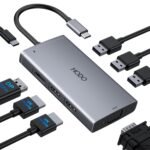
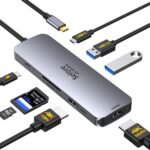
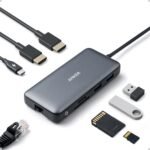
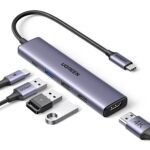
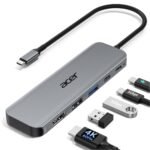
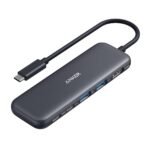
This MOKiN docking station is a USB-C hub that turns one port on your laptop into two 4K HDMI outputs, plus USB-A, USB-C data, and SD/microSD slots. It solves the “I have one port and need two monitors” problem that hits anyone using a thin laptop at a desk. It’s really for people who want cheap, functional dual monitors without buying a full Thunderbolt dock.
The thing costs $35.99, which is about half what a known brand charges. That’s the whole point. You trade a bit of polish and cable length for a price that doesn’t hurt. If you need reliable dual-screen work on a budget, this is where you land.
Key Features
Dual 4K HDMI output at 60Hz – You get two monitors running 3840×2160 at a smooth 60 frames per second. That’s proper desktop real estate for spreadsheets, code, or design work. No stutter.
100W Power Delivery pass-through – Plug your laptop charger into the hub’s USB-C port and it charges your laptop while you use everything else. The hub itself doesn’t need its own power brick.
Aluminum shell – It’s metal, not cheap black plastic. Feels cool to the touch and won’t slide around on your desk. Helps a bit with heat, too.
Four USB-A ports (two at 10Gbps, two at 480Mbps) – The fast ones handle external SSDs or large file transfers; the slower ones are fine for a mouse and keyboard. Smart split so you aren’t wasting speed on peripherals that don’t need it.
SD and microSD card slots – Full-size slot on the side. MicroSD underneath. Good for photographers or anyone who still uses a real camera.
Ethernet port (Gigabit) – Wired network when Wi-Fi is flaky. That port is on the back, next to the HDMI, so cables stay tidy.
Fit for You
You work from home and your laptop can only drive one external screen on its own.
You bought a used Dell or HP office laptop that has USB-C but no HDMI port.
You’re tired of unplugging a separate HDMI adapter, USB hub, and SD card reader every time you close your laptop.
You need to connect two 4K monitors to a MacBook Air or Pro (Intel or Apple Silicon, but check the limits below).
Your desk is cramped and you want one small box, not a tangle of dongles.
You’re on a tight budget and can’t justify spending $70+ on an Anker or CalDigit hub.
Uses
You sit down at your desk in the morning, plug one USB-C cable from the hub into your laptop, and within five seconds both external monitors wake up. Your wired mouse, keyboard, ethernet, and external SSD are all connected through the hub. You never touch another cable until you leave.
When you finish and close the lid, the hub goes silent. No fan noise, no coil whine. Next time you plug in, it just works. That’s the use case – it turns a single cable into a full workstation.
If you travel with a camera, you can plug the SD card into the hub and import photos while the laptop charges. Same slot works for dumping drone footage or a Raspberry Pi’s microSD.
Experience
Setup is plug-and-play on Windows and macOS. Linux users might need to check their kernel version for DisplayPort Alt Mode support, but most modern distros handle it. The hub itself doesn’t need driver downloads.
The cable that connects to your laptop is short – about 6 inches. That means the hub has to sit right next to your laptop, not behind the monitor. A little annoying if you have a big desk and want to hide everything, but you can buy a short USB-C extension if it bothers you.
After a few hours of heavy use – two 4K screens, copy files to an SSD, charge the laptop – the aluminum body gets warm but not hot. No throttling, no dropped displays. Owners tend to mention that it stays cooler than plastic hubs.
The one small frustration: the ports are labeled with tiny white text that’s hard to read in low light. You’ll memorize them after a day, but first setup involves squinting. Also, the USB-A ports are on the side, so if you plug a fat USB drive in, it sticks out sideways and can block the adjacent port. Use right-angle adapters if you have multiple chunky drives.
Pros and Cons
Pros
Dual 4K at 60Hz for $36 – Most hubs this cheap can only do one 4K or two at 30Hz. This one gets the full refresh rate.
Solid metal build – Won’t flex, crack, or look cheap on your desk. Feels like it costs more than it does.
100W power delivery works – Charges a 13-inch MacBook Pro at full speed. Bigger laptops might charge slower, but it’s still better than draining.
SD/microSD at decent speed – Enough for transferring photo cards quickly. Not Thunderbolt-fast, but fine for 64GB SD cards.
Gigabit ethernet is stable – No drops, no “network cable unplugged” errors. Good for video calls.
Cons
Short attached cable – Six inches. You can’t place the hub far from the laptop. Extensions can cause compatibility issues, so test first.
Side USB-A ports are tight – Two are spaced closely. Wide flash drives block each other. Use thin ones or a USB extension.
No HDMI 2.1 or 4K at 120Hz – This is 4K 60Hz only. Gamers with high-refresh monitors should look elsewhere.
MacBook M1/M2 dual monitor limits – The M1 and M2 MacBook Airs natively support only one external display. This hub won’t magically give you two (mirroring is possible, extended isn’t). M1/M2 Pro, Max, and M3 models do support dual screens.
USB-C data port is only 10Gbps – Fine for SSDs, but not Thunderbolt speeds. Don’t expect to edit 4K video directly from an external drive through the hub.
Advantages
Compared to an Anker or Belkin hub that costs twice as much, the MOKiN gives you the same core features – dual 4K, power delivery, ethernet – for less money. The catch is the shorter cable and less refined port layout. But if you’re mostly stationary, those trade-offs are minor.
Price per port is absurdly low. You get 11 ports for $36.
Aluminum instead of plastic. Most competitors at this price use plastic.
True 4K 60Hz on both displays, which many cheap hubs advertise but don’t deliver reliably.
Works with Windows, macOS, ChromeOS, and even some Android tablets that support desktop mode.
Who Should Buy
Buy it if you need a cheap, reliable dual-monitor hub for a Windows laptop or Intel Mac.
Buy it if you’re outfitting a home office on a budget and don’t care about braided cables or a longer cord.
Skip it if you have an M1 or M2 MacBook Air and want two external screens – it won’t work for extended displays.
Skip it if you need 4K at 120Hz or Thunderbolt speeds for video editing off a RAID array – get a proper Thunderbolt dock for $150+.
Skip it if you need a hub that sits behind your monitor and reaches the laptop with a long cable – look for a model with a detachable 1m cable.
FAQ
Is MOKiN docking station worth it?
Yes, if you need dual 4K monitors and a handful of USB ports without spending over $50. The short cable and side USB spacing are the only real downsides for most people.
How does MOKiN vs Anker docking station compare?
Anker typically offers longer cables, better port spacing, and a bigger brand warranty, but costs $60–$80. MOKiN matches the core specs for half the price, with a metal body that Anker often reserves for pricier models.
Is the MOKiN docking station compatible with Mac?
It works with any Mac that has USB-C with DisplayPort Alt Mode, including MacBook Pro (2016 and later), MacBook Air (2018 and later). But M1 and M2 MacBook Airs are limited to one external display – only Pro and Max chips support dual screens via this hub.
Is the MOKiN docking station safe for my laptop?
Yes. It uses standard Power Delivery negotiation and won’t overcharge. The aluminum shell dissipates heat well. Many owners have used it daily for over a year with no issues.
Does the MOKiN dual monitor hub for Mac support 4K at 60Hz on both screens?
Yes, on supported hardware. You need a laptop that can drive two external displays, and the hub passes through full 4K 60Hz on each HDMI port. It does not do 4K 120Hz.
Can I use it as a MOKiN docking station for Dell HP laptops?
Absolutely. Most Dell and HP business laptops with USB-C support DisplayPort Alt Mode. Plug it in, install no drivers, and both monitors work immediately. This is one of the most common use cases.
Final Verdict
The MOKiN docking station is a smart buy if your priority is getting two 4K monitors running from one USB-C port without spending a lot. It’s not perfect – the short cable and cramped side ports are real annoyances – but it delivers where it matters: reliable video, steady ethernet, and fast enough USB for everyday gear.
If you can live with the cable length and don’t need Thunderbolt speeds, this is the best dual-monitor hub under forty bucks. Check your laptop’s display limits before ordering, especially if you own a base-model MacBook Air.
The MOKiN Docking Station lands at a jaw-dropping $35.99—cheap enough to make you suspicious. And yet it somehow delivers dual 4K@60Hz HDMI output, which most hubs under $70 flat-out don’t. But budget pricing usually means trade-offs in build, software support, and long-term reliability. So where does it actually sit against real rivals? Let’s sort the winners from the “you get what you pay for” crowd.
Product
Price Range
Key Strength
Key Weakness
Best For
MOKiN Docking Station
Budget (~$36)
Dual 4K HDMI at a price that feels like a typo
Plastic body; occasional handshake drops with older monitors
Anyone who needs two 4K monitors on a strict budget
Anker PowerExpand 8-in-1
Budget ($30–$50)
Solid build, reliable USB-C passthrough, known brand
Only one HDMI port; no dual‑monitor support
Single‑monitor setups and travel where portability rules
CalDigit TS4
Premium ($300–$360)
Unmatched I/O (85W charging, 10Gbps USB, dual 6K)
Costs more than many laptops; way overkill for office work
Pro workflows, heavy multitasking, or driving 6K displays
Plugable UD-6950H
Mid-range ($100–$140)
DisplayLink means it works with almost any USB-C laptop
Uses DisplayLink compression; not native MST – slight video lag
Anyone whose laptop lacks native DisplayPort Alt Mode
MOKiN Docking Station vs Anker PowerExpand 8-in-1
Same price ballpark, completely different use cases. The Anker is a portable USB-C hub you throw in a bag—one HDMI out, one VGA, a couple of USB-A ports. It’s reliable, it’s compact, and it won’t embarrass you in a coffee shop. The MOKiN, by contrast, is a full desktop dock: two HDMI ports that actually push 4K@60Hz to each monitor simultaneously. If you need a best docking station for dual monitors under forty bucks, there’s no contest—MOKiN wins by default. But Anker’s build feels sturdier. The MOKiN’s plastic shell creaks a little when you plug in a cable, and the charging pass-through tops out at 60W instead of Anker’s commonly cited 85W. So if you’re a single‑monitor person who values rock‑solid reliability, pick the Anker. For dual‑screen productivity on a shoestring, the MOKiN is the only real option.
MOKiN vs CalDigit TS4: When Cheap Actually Works (or Doesn’t)
Comparing a $36 dock to a $350 one feels unfair. But the MOKiN Docking Station does one thing the CalDigit TS4 can’t—fit into a “why is this so cheap” conversation. The TS4 gives you two Thunderbolt 4 ports, 10Gbps USB, 85W charging, and enough bandwidth for dual 6K displays. It’s built like a tank and has firmware updates that actually fix bugs. The MOKiN, at a tenth of the price, handles dual 4K @60Hz over HDMI—and that’s it. No high‑speed data, no daisy‑chaining, no guarantee it’ll work with every Dell or HP laptop (though most modern ones with USB‑C Alt Mode work fine). So is MOKiN docking station worth it vs the TS4? Only if your budget is the deciding factor, and you’re fine with basic connectivity. If your job depends on zero crashes, zero re‑plugging, and zero dropped frames, you’ll hate the MokiN’s occasional temperament. Buy the TS4 for peace of mind. Keep the MokiN as a spare.
MOKiN vs Plugable UD-6950H: Native MST vs DisplayLink
Plugable’s mid‑range dock uses DisplayLink—a software‑driven approach that lets you drive two monitors even from laptops that don’t support native MST (looking at you, many Macs). The trade‑off: you’ll see a tiny amount of video compression, and install DigitaL Docking software. The MOKiN, by contrast, relies on your laptop’s native MST capabilities. For a MOKiN dual monitor hub for Mac that uses an M1/M2 chip, this is a problem—Apple’s chips don’t natively support MST over USB‑C when using multiple HDMI dongles, so the MOkN will only mirror on a Mac, not extend. That’s a killer. If you own a Mac, skip the MOKiN and get the Plugable (or a dedicated Thunderbolt dock). But for a MOKiN docking station for Dell HP Windows laptop that natively supports MST, the MOkN works great. No software, no compression, and it’s half the price of the Plugable. Simple choice: Windows budget dual‑monitor? Get the MOKiN. Mac user? Look at the Plugable.
Bottom line: pick the MOKiN Docking Station if you’re on a Windows laptop, need dual 4K monitors, and your budget can’t stretcg past $40. It’s the best [category] for that specific, narrow stripe of buyer. If you use a Mac, want rock‑stable build, or need high‑speed data ports, go with the Plugable UD-6950H. And if money is no object, the CalDigiit TS4 will outlast every laptop you own. The MOKiN isn’t perfect—but for $35.99, it’s a shocking amount of monitor for the money
Ready to decide on the MOKiN Docking Station?
See today’s price, stock and delivery options on Amazon.