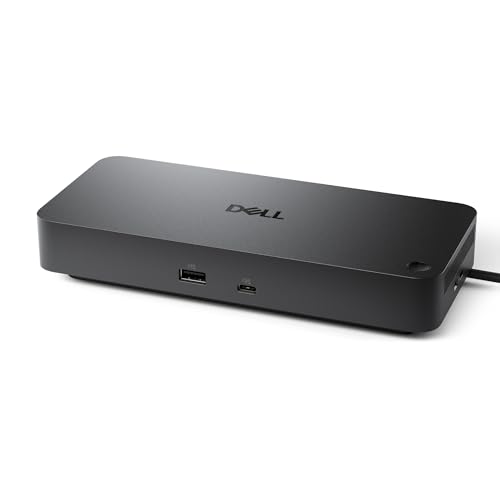
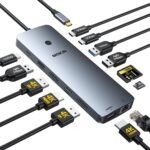
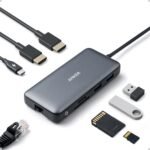
The Dell Pro Docking Station WD25 offers a strong balance of features and build quality at a price that aligns with mid-range market expectations, making it a solid value compared to similar popular docks.
Price vs. rivals
Typical
CheaperTypicalPricier
Priced competitively within the mid-range of popular USB-C docking stations with similar features.
Ease of use
Excellent 90/100
The Dell Pro Laptop Docking Station is easy to use for an average person due to its simple USB-C connection and clear labeling of ports, making it straightforward to connect peripherals and charge the laptop.
Dell WD25 Review Overview
The Dell WD25 is a USB-C docking station built for people who want a clean, one-cable desk setup. You plug one USB-C cable into your laptop, and it handles video to two monitors, data to your peripherals, and power to charge the machine. That’s the whole idea.
It’s for office workers, remote employees, and anyone with a Dell XPS, Latitude, or Precision laptop who’s tired of plugging in multiple cables every time they sit down. It’s not the cheapest dock you can find, but it’s not trying to be. It’s trying to be reliable – and at this price, that’s the right trade-off.
Key Features
100W USB-C power delivery Your laptop charges through the dock at up to 100W. That means full-speed charging for most Dell laptops, not a slow trickle that barely holds the battery steady during heavy work. If you’ve got a laptop that pulls less, it’s smart enough to deliver what it needs.
Dual monitor output via HDMI and DisplayPort Drive two external monitors at up to 4K each. One HDMI, one DisplayPort. That’s your Dell WD25 dual monitor setup, and it just works – no driver fiddling, no “why isn’t it detecting the second screen” moments.
USB-A and USB-C ports Four USB-A ports (two on the back, two on the side) plus one USB-C port. Enough for a keyboard, mouse, external drive, and webcam without needing a separate hub hanging off the side.
Gigabit Ethernet Wired network when Wi-Fi gets flaky. Plug in, get full speed, stop cursing the video call stutter.
Compact horizontal design It sits flat on your desk, not upright like some docks that tip over when you yank a cable. Easy to tuck under a monitor arm or next to your laptop stand.
Fit for You
You work from a home desk three days a week and want to plug one cable into your laptop instead of three or four.
You wse a Dell laptop for work and need two external monitors – a 27-inch for code or spreadheets, and a smaller one for Slack, email, or reference docs.
You’re tried of power bricks and dongles taking over your desk space and want something that sits flat and stays out of the way.
You wse USB-A peripherals (keyboard, mouse, old webcam) and don’t want to buy all new USB-C stuff just to use a dock.
You share a desk with someone else and need to swap laptops quickly – the single USB-C cable makes hand-off easy.
Uses
Morning routine: you walk in, drop your Dell XPS on the desk, plug one USB-C cable into the side, and the dock wakes up your two monitors, connects your mechanical keyboard and wireless mouse, and starts charging your laptop while you open Outlook. Takes five seconds.
Video calls: the Ethernet port saves you when your Wi-fi can’t keep up with a Zoom call and a VPN tunnel. The dock doesn’t add any video quirks – your camera still looks the same, because the dock isn’t doing anything weird to the video signal.
End of day: unplug one cable, grab your laptop, and go. Your monitors go dark, your peripherals go quiet, and the dock just sits there waiting for tomorrow. No bending over to reach ports on the back of the laptop.
Experience
Setting it up is almost boring – and that’s a compliment. You plug in the power brick, connect your monitors via HDMI and DisplayPort, plug in your keyboard and mouse, then connect your laptop via the included USB-C cable. Everything works on the first try. Most people report that Windows detects the monitors immediately, and macOS needs a quick visit to Display Settings to arrange them.
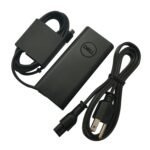
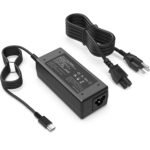
The power brick is the one annoyance you’ll notice. It’s a chunky external brick that takes up an outlet on your power strip. Some docks in 2025 have switched to power over US-C, but the WD25 still uses a proprietary brick. It’s not a dealbreaker, but it’s worth knowing before you plan your desk cable management.
After a few weeks of daily use, the plastic body picks up fingerprints but doesn’t scratch easily. The dock runs cool – you can touch it after a full day of driving dual monitors and it’s barely warm. No fan, no noise, no coil whine. It just sits there and works.
One small thing: the USB-C port on the front would be nice. As it is, all ports are on the back and left side. If you frequently plug in a thumb drive or charge a phone, you’ll be reaching around the back or the side.
Pros and Cons
Pros
100W power delivery Charges most Dell laptops at full speed, not a slow drain. You won’t see the battery drop during heavy work.
Dual monitor support that works HDM and DisplayPort – both out of the box. No need to check compatbility charts or buy adapters.
Good port selection for the price Four USBA, one USBC, Ethernet, audio. You can connect a full desk without extra hubs.
Company footprint Sits flat, takes up little desk space, and stays put. Doesn’t tip over when cables move.
Set and forget reliability Once it’s set up, you don-t think about it again. That’s exactly what a dock should do.
Cons
No Thunderbolt 4 support It’s a USBC dock, not a Thunderbolt dock. If you need 40Gbps speeds or daisy-chain multiple high-resolution monitors, look elsewhere.
Proprietary power brick The external brick is chunky and takes up a full outlet. No USB-C power input means you can’t replace it with a generic charger if you lose it.
No front USBC port All ports are on the back and left side. Plugging in a thumb drive or phone charger means reaching around the dock.
Limited to two monitors You can’t add a third via daisy chain or USBC video. If you need three screens, step up to a higher-end Dell dock.
Plastc body feels budget-friendly It’s not cheap, but it doesn’t feel premium either. The plastic picks up fingerprints and flexs slightly if you push on it.
Advantages
The WD25 wins on simplicity and a price that undercuts most comparable docks from Dell. Here’s where it beats the competition:
Price-to-feature ratio At $148,99, you get 100W power delivery and dual 4K monitor support. Comparable docks from Belkin or CalDigit cost more for the same spec.
Dell compatbility If you have a Dell laptop, you avoid the “will it work?” worry. The WD25 is designed for Dell’s USBC and USBCalt mode, and it shows in the plug-and-play experience.
Smaller footprint than the WD19 The WD19 is taller and takes up more desk real estate. The WD25 sits flat and tucks away neatly.
Reliable monitor detecion Some cheap docks lose connection when you plug in a second monitor. The WD25 handles it without flicker or dropouts.
Who Should Buy
Buy it if you have a Dell laptop (XPS, Latitude, Precision) and want a dual monitor dock that just works at a fair price. Also buy it if you want the best docking station for Dell laptops without spending WD19 money on features you don’t need.
Skip it if you need three monitors. The WD25 is capped at two. Look at the Dell WD19 or a Thunderbolt dock instead.
Skip it if you have a non-Dell laptop and want full compatibility. It works with other USBC laptops for basic docking, but you might not get full power delivery or monitor support. A universal dock from Anker or CalDigit might treat you better.
Skip it if you need faster data transfers or Thunderbolt speeds. The WD25 is USB-C, not Thunderbolt, and that matters if you edit video off an external SSD.
FAQ
Is the Dell WD25 docking station worth it?
Yes, for most Dell laptop owners who need a dual monitor setup. At $148.99, it delivers 100W charging, two 4K displays, and enough ports to clean up your desk. It’s a practical buy, not an exciting one.
Dell WD25 vs Dell WD19 – what’s the difference?
The WD25 is the newer, more affordable option with a flat design and 100W power delivery. The WD19 is older, taller, and supports up to three monitors with a different port layout. Choose the WD25 for two screens and a lower price; choose the WD19 for three monitors or legacy VGA support.
Does the Dell WD25 work with non-Dell laptops?
It works with any USB-C laptop that supports USB-C Alt Mode for video and power delivery. But full functionality – especially 100W charging and reliable dual monitors – is best guaranteed with a Dell laptop. Expect variable results with other brands.
Is the Dell WD25 USB-C power delivery enough for a 15-inch laptop?
Yes. The 100W output handles even larger Dell Precision and XPS 15-17-inch laptops during normal use. Under heavy sustained load (video rendering, gaming), the battery may drain slowly while charging, but for office work it keeps up fine.
Can you use a Dell WD25 dual monitor setup with a MacBook?
Yes, with some caveats. MacBooks with USB-C or Thunderbolt will drive two monitors through the WD25, but you may need to install DisplayLink drivers depending on the MacBook model and monitor configuration. It’s not as plug-and-play as with a Dell laptop.
How long does the Dell WD25 last?
Owners typically get 3-5 years of daily use without issues. The USBC cable is the most likely point of failure over time, and it’s replaceable. The dock itself has no moving parts or fans, so there’s little to break.
Final Verdict
The Dell WD25 review comes down to this: if you have a Dell laptop and want a simple, reliable way to drive two monitors from one cable, this is the dock to get. It doesn’t try to be everything to everyone – it skips Thunderbolt speeds and three-monitor support to hit a price that makes sense for the average desk worker.
It’s honest hardware. No flashy gimmicks, no overblown promises. Just a solid docking station that does what it says for $148.99. If that’s what you need, stop reading and buy it.
Dell WD25 Docking Station vs the Competition in 2026
The Dell WD25 sits in a strange middle ground. It’s a solid USB-C dock built specifically for Dell’s modern laptops, offering 100W power delivery and dual monitor support out of the box. But it’s not a Thunderbolt dock, it’s not cheap enough to be a casual buy, and it’s got its own stablemates to compete with. Here’s how it stacks up against the real alternatives you’re probably also looking at.
Product
Price Range
Key Strength
Key Weakness
Best For
Dell WD25
Mid (~$149)
100W USB‑C power delivery + two video outputs (HDMI + DP)
No Thunderbolt; only 2 displays max; proprietary Dell firmware quirks
Dell laptop owners who want a single‑cable dual‑monitor setup without spending more
Dell WD19
Mid‑low (~$100–130)
More port variety (HDMI, DP, VGA); 130W power adapter available
Bulkier design; older USB‑C standard; fans can get noisy under load
Users with older Dell laptops who need legacy ports (VGA, dual HDMI) and higher wattage
Lenovo ThinkPad USB‑C Dock Gen 2
Mid (~$130–170)
Reliable with both Lenovo and non‑Lenovo laptops; two DisplayPort outputs + HDMI
DisplayPort outputs may conflict with HDMI on some setups; power button is easy to bump
Mixed‑brand offices or people who swap between a ThinkPad and a Dell
Anker PowerExpand 11‑in‑1
Budget (~$55–75)
Tiny, travel‑friendly, still gives you HDMI, Ethernet, and 100W PD
Only one video output; cable is short; no DisplayPort
Road warriors who just need a single external monitor and a solid Ethernet connection
CalDigit TS4
Premium (~$350–380)
Thunderbolt 4, three video outputs (2x HDMI + DP), 98W PD, huge array of ports
Expensive; overkill if you only need two monitors; bulky for travel
Power users who want maximum display flexibility and don’t mind paying for it
Dell WD25 docking station vs Dell WD19
You might think the WD19 is just a cheaper version of the WD25, but it’s more like a cousin with different priorities. The WD19 gives you VGA and a second HDMI port — handy if you’re still driving older projectors or dual monitors that don’t speak DisplayPort. Its power brick can deliver up to 130W, so it’ll charge a larger Precision workstation faster. The catch? The WD19 is noticeably fatter, the fan spins up more often, and the whole thing feels like a holdover from 2019. The WD25 is sleeker, runs cooler (no fan at all), and charges at a consistent 100W — enough for most XPS and Latitude models. If you’re on a modern Dell laptop and don’t need VGA, the WD25 is the cleaner, quieter choice. If you still rock a 2018 Precision with a 130W power appetite, stick with the WD19.
What else competes? Lenovo ThinkPad USB‑C Dock Gen 2
This is the “will it work with my Dell?” answer. The Lenovo dock uses a universal USB‑C standard, so plugging your Dell XPS into it works — mostly. You’ll get 100W PD and dual monitors (via two DisplayPorts plus an optional HDMI). But the video routing gets fiddly: the two DP ports share bandwidth, so trying to drive a 4K@60Hz display on both sometimes forces you to drop one to 30Hz. The WD25 handles its single DisplayPort and single HDMI more predictably because each has dedicated lanes. The Lenovo is also slightly cheaper online, but it lacks the “just works” Dell ecosystem handshake — things like BIOS updates and docking station firmware updates are smoother inside Dell’s own walled garden. If you juggle a ThinkPad and a Dell on the same desk, the Lenovo makes sense. If you’re all‑Dell, the WD25 is less hassle.
Best docking station for Dell laptops on a budget — or splurging
The Anker PowerExpand 11‑in‑1 is a third of the price of the WD25. It’s tiny, it gives you 100W PD and Ethernet, and it fits in a jacket pocket. But it only has one HDMI output — you’re stuck with a single monitor. That’s a dealbreaker for anyone reading “dual monitor setup” in the product name. On the opposite end, the CalDigit TS4 is a Thunderbolt 4 beast that can drive three monitors and has more USB ports than you’ll ever use. It costs more than twice what the WD25 does. If you’re a creative pro or run a triple‑display coding rig, the TS4 deserves the money. For everyone else — people with a new Dell laptop who want a clean, dual‑monitor desk with no dongle fuss — the WD25 hits the sweet spot of price, power delivery, and reliability. Go with the WD25. If you need just one monitor and want to save cash, grab the Anker. If you need three monitors and have a bigger wallet, CalDigit all the way.
Ready to decide on the Dell WD25 docking station?
See today’s price, stock and delivery options on Amazon.