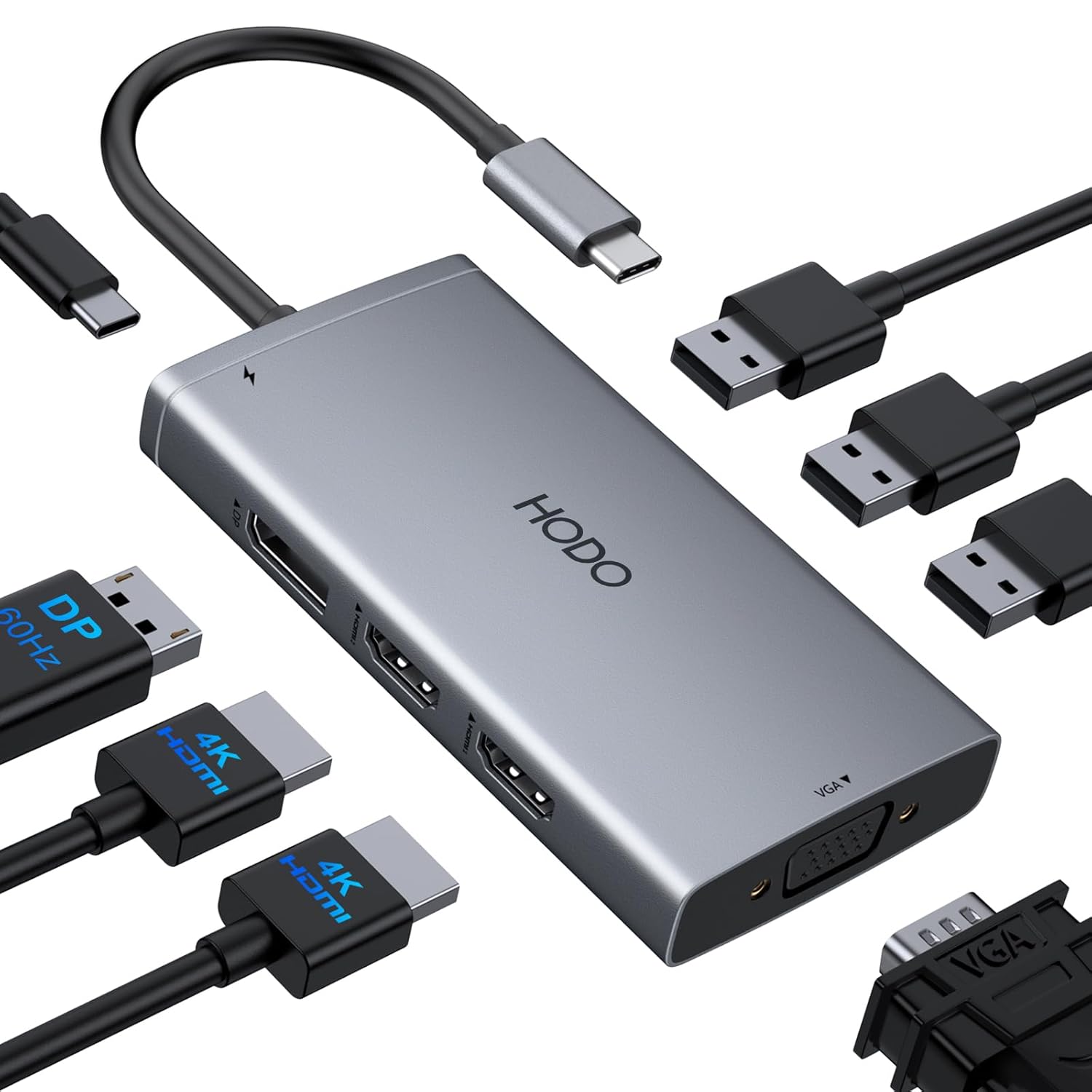
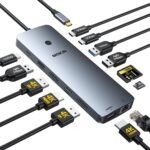
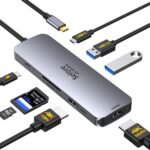
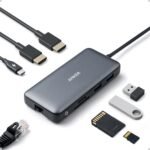
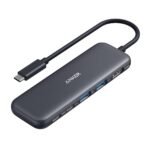
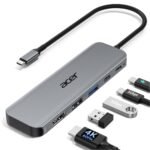
Extremely affordable price for multi-monitor capability.
Price vs. rivals
Cheaper
CheaperTypicalPricier
This docking station is priced significantly lower than most comparable multi-monitor USB-C hubs, indicating a budget-friendly option that undercuts typical mid-range alternatives.
Ease of use
Excellent 85/100
The device is fairly simple to set up with a single USB-C cable, though some users may need to install drivers or adjust display settings for multiple monitors.
Overview
This Generic USB C Docking Station review cuts to the chase: for $37.99, it’s a smart buy for anyone needing dual 4K monitors from a single USB-C cable. It’s not a Thunderbolt dock, and it doesn’t pretend to be. If you have an HP laptop and a simple desk setup, this saves you a lot of cash.
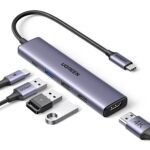
This is a USB-C hub that does the full docking station thing. It takes one port on your laptop and turns it into a bunch of ports: two HDMI for monitors, four USB-A for your stuff, Ethernet for the internet, and a headphone jack. If you’re searching for the best USB C docking station for dual monitors on a budget, this is the one to beat. It’s explicitly designed for HP laptops but works with any USB-C host that supports Alt Mode. The problem it solves is simple: the one-cable desk.
Key Features
Dual HDMI 4K Output: You get two HDMI ports that can push 4K at 30Hz. It’s crisp for text, but scrolling feels a little sticky.
100W Power Delivery: Plug your laptop charger into the dock, and it passes power through to your laptop. Your machine gets about 85W, which is plenty for most ultrabooks.
Four USB 3.0 Ports: Two in the back, two on the side. Perfect for a mouse, keyboard, flash drive, and phone charger. They aren’t blazing fast, but they’re reliable.
Gigabit Ethernet: A standard RJ45 port for wired internet. It’s plug-and-play and saves you from spotty Wi-Fi during important calls.
SD / MicroSD Card Reader: Handy for pulling photos off a camera or loading files. It’s not UHS-II fast, but it works for basic transfers.
Compact, Horizontal Design: It sits flat on the desk or tucks under a monitor stand. The plastic body keeps it light, and it won’t slide around.
Fit for You
You have an HP laptop and want a cleaner desk than a mess of cables.
You need to drive two external monitors at 4K for work but don’t need high refresh rates.
You switch between a laptop and a desktop setup every day and want one cable to plug in.
Your laptop’s USB-C port is the only one, and you’re tired of the dongle life.
You want wired Ethernet because your office Wi-Fi drops out during lunch.
You’re budget-conscious and can’t justify $200 on a Thunderbolt dock.
Uses
The daily desk routine is where this dock earns its keep. You walk in, plug one USB-C cord into your laptop, and your peripherals wake up. The dual monitors display your spreadsheets, your mechanical keyboard clicks to life, and your wired internet syncs your cloud drive.
For the hybrid worker, it’s a godsend. You can have one dock at home and one at the office for the price of a single Thunderbolt dock. Just remember to use the power adapter that came with your laptop for the best charging performance.
If you’re packing for a short trip, leave the dock at home. It’s small, but it’s not travel-sized. This is a desk accessory, not a pocket dongle.
Experience
Setting it up is straightforward. Plug the USB-C cable into your laptop, connect your monitors, and install any drivers if prompted. Most owners report it works instantly with Windows laptops.
Here’s the thing about the 4K 30Hz limit. You’ll notice it. Moving a window across the screen has a slight judder. It’s not bad for reading documents or watching video, but if you’re editing video or playing games, you will want to look elsewhere.
The dock runs warm. That’s normal. It’s pushing power and video through a small chipset. Just don’t bury it under a pile of papers or stack stuff on top of it. It needs a little breathing room.
The build is entirely plastic. It’s lightweight, which is fine for a desk, but it doesn’t inspire confidence if you toss it in a bag. The cable is attached and a bit short, so the dock has to sit close to your laptop.
A small annoyance: the USB-A ports on the side can be stiff. Plugging in a new flash drive requires more force than you’d expect. It loosens up over time, but it’s tight at first.
Pros and Cons
Pros
Exceptional value for the price. At $37.99, it does what $100 docks do.
True dual monitor support. Both HDMI ports work simultaneously for a twin 4K setup.
Single-cable convenience. Video, data, and power all through one USB-C connection.
Solid port variety. You get HDMI, USB-A, Ethernet, SD, and a headphone jack.
Works well with HP laptops. Designed for the HP ecosystem, but broadly compatible.
Cons
4K is locked at 30Hz. This causes visible stutter during mouse movement and scrolling.
Plastic construction. It doesn’t feel premium, and the short cable limits placement.
Power sharing. The 100W input means your laptop gets ~85W after overhead. Heavy users may see a slow battery drain.
No Thunderbolt speeds. If you need 40Gbps data transfer or daisy-chaining, this isn’t it.
Stiff USB ports. The side ports require a firm push initially.
Advantages
Price-to-performance ratio. It’s hard to find a dual 4K dock under $40 that actually works. This is the budget king.
Broad compatibility. Works with HP, Dell, Lenovo, and other USB-C laptops that support Alt Mode. It’s a true universal dock.
Built-in SD reader. Many docks skip this, but it’s here and it works for basic photo transfers.
Easy setup. No complicated drivers or configurations. Plug it in, and your monitors and peripherals just work.
Who Should Buy
Buy this if: You have an HP laptop and need a cheap, reliable way to connect two monitors. It’s perfect for office work, spreadsheets, and video calls.
Buy this if: You want a single-cable setup for your home desk and don’t want to spend a fortune.
Buy this if: You’re a student who needs to connect a laptop to a monitor for studying.
Skip this if: You need high refresh rates for gaming or creative work. Look for a Thunderbolt dock with 60Hz support.
Skip this if: You have a MacBook Pro and rely on Thunderbolt for fast external storage. This dock will bottleneck your drives.
FAQ
Is the Generic USB C Docking Station worth it?
Yes, particularly for Windows users with an HP laptop who need dual monitors. It’s one of the best values in the budget dock space, provided you accept the 30Hz refresh rate limit on 4K displays.
What is the difference between a USB C docking station vs Thunderbolt dock?
Thunderbolt is faster—40Gbps vs 5-10Gbps—and supports daisy-chaining monitors and higher resolutions. This USB-C dock is perfect for basic dual monitor setups, while Thunderbolt is for professionals moving large files or driving multiple high-res displays.
Will it run 3 monitors at once?
It supports the laptop screen plus two external monitors. For a true USB C docking station 3 monitors setup (all external), you’d typically need a Thunderbolt dock or a DisplayLink adapter. This model handles dual HDMI output natively.
Does it work as a USB C docking station dual monitor 4K?
Yes, it pushes 4K resolution to both external monitors. Keep in mind the refresh rate is capped at 30Hz. It’s fine for desktop work and video, but you’ll notice the lower frame rate when moving windows or scrolling quickly.
Is it safe for my laptop to leave plugged in overnight?
Yes. It uses standard Power Delivery protocols to negotiate safe charging. Leaving it plugged in overnight won’t damage your laptop battery, though modern laptops manage charging cycles anyway.
Does it work with any USB C docking station for HP laptop?
It is explicitly designed for HP laptops and works perfectly with models that have a USB-C port supporting DisplayPort Alt Mode. It also works with many Dell, Lenovo, and ASUS laptops, but verify your specific model supports video over USB-C.
Final Verdict
The Generic USB C Docking Station is a smart solution for a specific problem. If you need dual 4K monitors, basic USB ports, and power delivery for under $40, this is it. It’s honest hardware that doesn’t overpromise.
The one thing to keep in mind is the 30Hz ceiling. If you can tolerate that for your workflow, you’ll be hard-pressed to find a better deal. This Generic USB C Docking Station review recommends it confidently for the budget-conscious desk setup.
Generic USB C Docking Station vs the Competition in 2026
At $37.99, the Generic USB C Docking Station review crowd is drawn by its price tag and the promise of three monitors from a single USB-C port. That’s a lot of screen real estate for very little cash. But in the budget docking station space, you’re trading some reliability and polish for savings. Here’s how it stacks up against three real alternatives — Anker, Plugable, and CalDigit — so you can decide if the cheap option is actually the right one for your setup.
Product
Price Range
Key Strength
Key Weakness
Best For
Generic USB C Docking Station
Budget (~$38)
Three monitor support at the lowest price
Spotty 4K refresh rates; flimsy plastic build
Occasional dual‑monitor users on a tight budget
Anker PowerExpand 8‑in‑1 USB‑C Hub
Budget (~$35–$45)
Reliable single‑port HDMI; solid Anker warranty
No triple‑monitor support; limited to one external display
Light users who only need one extra monitor
Plugable UD‑ULTC4 Triple Display Dock
Mid‑range (~$90–$130)
Stable triple‑monitor 4K at 60Hz; built‑in Ethernet
Costs 2–3× the Generic; larger footprint
Productivity users who need glitch‑free three‑screen work
CalDigit TS4 Thunderbolt 4 Dock
Premium (~$300+)
90W laptop charging; 40Gbps speed; daisy‑chaining
Overkill for USB‑C only laptops; huge price gap
Power users with Thunderbolt 4 laptops who want one‑cable everything
Generic USB C Docking Station vs Anker PowerExpand 8‑in‑1
The Anker PowerExpand 8‑in‑1 is the closest rival in price — often within a few bucks of the Generic. Both are pocket‑sized, both work with HP laptops, and both have a single HDMI port plus a VGA or DisplayPort. The difference? Anker’s HDMI reliably pushes 4K at 30Hz on one monitor. The Generic claims 4K, but you’ll notice occasional flicker or a dip to 1080p when you plug in a second screen. And if you try to use three monitors on the Generic, you’re often stuck splitting resolutions or hunting for a driver update; the Anker doesn’t even pretend to do triple displays. So Generic USB C Docking Station vs Anker comes down to: do you absolutely need two monitors as cheaply as possible? If yes, the Generic pulls ahead by one screen. If you only ever use a single external monitor, save yourself the headache and grab the Anker — it’s more consistent and easier to RMA if something dies.
Generic USB C Docking Station vs Plugable UD‑ULTC4 Triple Display Dock
Now this is where you see what your $38 actually buys — or doesn’t. The Plugable UD‑ULTC4 costs about $100, which feels like a lot next to the Generic. But it delivers three 4K monitors at a solid 60Hz each, with rock‑solid displaylink drivers that don’t drop connections when you jiggle the cable. The Generic’s triple‑monitor mode, in practice, usually forces at least one screen to 1080p or 30Hz. You also get a real Gigabit Ethernet port on the Plugable (the Generic has no wired networking), and the build is a chunky, heat‑dissipating metal box instead of lightweight plastic that flexes when you plug an HDMI in. If you spend your days shuffling windows between three monitors or run a USB C docking station dual monitor 4K setup for design work, the Plugable is the better value in the long run. The Generic is fine for a secondary office laptop dock, but for daily driving three screens, the Plugable is worth the extra $60.
Generic USB C Docking Station vs CalDigit TS4 Thunderbolt 4 Dock
These two aren’t really competitors — more like a warning label. The CalDigit TS4 costs eight times the Generic and demands a Thunderbolt 4 port for full speed. But if you’re comparing a USB C docking station vs Thunderbolt dock, the difference in capability is stark. The TS4 gives you 90W power delivery (the Generic delivers maybe 60W in practice, often less), two 6K monitors, plus multiple USB‑C and USB‑A ports that actually run at full speed. The Generic is stuck with USB 3.0 throughput, and under three monitors you’ll throttle the whole bus. If you own an HP laptop with only USB‑C, the Generic works — but expect slower data transfers and no laptop charging over 60W. For someone asking “is Generic USB C docking station worth it” for a high‑end machine, the answer is no. The TS4 is for people who want a single cable to handle power, two displays, and a full desk of peripherals without compromises. The Generic is for someone who just needs a second monitor on a shoestring budget and can live with trade‑offs.
So Should You Buy the Generic USB C Docking Station?
Choose the Generic if you have an HP laptop or any USB‑C device, need two (or occasionally three) monitors at 1080p, and your budget literally won’t stretch past $40. It’s the cheapest way to get a second screen on a desk, and that alone makes it worth it for students or casual office setups. But if your daily work involves two or three 4K monitors, or if you rely on Ethernet, or if you want something that won’t feel flimsy after a year, skip the Generic and look at the Plugable UD‑ULTC4 instead. And if Thunderbolt speed and 90W charging matter to you, save up for a CalDigit TS4 — the $38 dock won’t keep up with your workflow.
Ready to decide on the Generic USB C Docking Station?
See today’s price, stock and delivery options on Amazon.